Does anyone know if there's a way to READ what your current configuration is on these devices? I want this device to work so bad, but i want to smash it with a hammer at the same time.... It's an awesome product in concept, but configuration of it is just so tedious to me. Especially if it doesn't work the way you think you programmed it, trying to understand how it's currently configured seems to be not possible? So you have to sort of wing it with up to 6 profiles, and remember what you put in each one, and then use a flashing LED to know what profile you have selected, but then there's also this map here that is a bunch of other settings menus that you have to press test and service to get into, but then you also press test and service to choose the layout, and if the chart is to be believed, you also press test and service to factory reset.... How do i know if i'm selecting a profile or if i'm in the navigational menu flow below? It's confusing much to me.
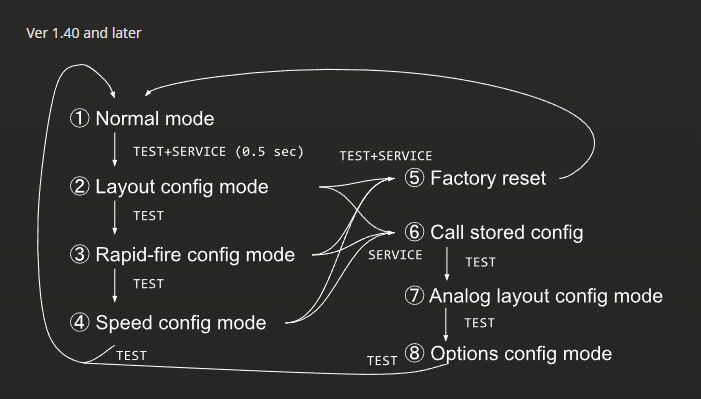
I'd pay significantly more money for one of these devices if it had an OLED/LCD screen and you could see what profile is currently selected and some sort of "current config" information. Invizm... we need you!
I'm not ripping on the product, i want to make it work, i just lack... the intellect to be able to understand properly how i should drive it. So I'm sure this is a me issue.
Attempting to learn how this works for myself and decipher all the info on the settings page. I have a v2 board that is updated to the latest firmware, and i have no issues connecting this device to my browser.
V2 board needs the jumper pins connected to update the firmware.So an assumption here will be made that a person knows how to connect the device and has the latest firmware on their device.
I'll break these sections up in numbers. I will update each section if anyone adds new information, i am not an expert and not sure i even understand each section works. PLEASE CONTRIBUTE IF YOU HAVE INFORMATION ABOUT HOW SOMETHING WORKS AND ITS NOT DOCUMENTED.
NOTE: The word set, when i talk about set 1 and set 2 etc, it means profiles. They use the word set but just convert it in your head to profile.
Set 1 = Profile 1
Set 2 = Profile 2
etc
SECTION 1: SETTINGS
SETTINGS BUTTON 1 [SAVE CHANGES]:
This saves everything back to your device. Whatever you have configured, at this point, it saves it back to your device. It is unknown if you have to refresh the page after you have saved once, for save to work again. The text where it says CONNECTED, changes to SAVED when you save, but then it's stuck on SAVED. So I am not sure if you can save multiple times or if you have to refresh the page after every save, but then you will also lose anything you configured on the page if you do refresh.
SETTINGS BUTTON 2 [DECIDE]:
So these are profiles, you can have 6 different configuration profiles on your device. Here how i understand this to work. You select the Set # from the dropdown, for example Set 1, you now have profile #1 selected, you are about to build the settings for profile 1. Then you go and configure the options you want on the other parts of the form (like the JVS ID, analogue inputs etc, button configs), THEN you have to scroll back up to the top and press the DECIDE button. If you choose another Set from the dropdown without clicking the DECIDE button, you will lose all of the changes you just made on the form. But when you click the DECIDE button, you have now saved the information you want for profile 1. If you select a different profile from the dropdown, and then come back to 1, it should now reload the details you saved on set 1.
You need to understand what's happening here. You aren't writing the config to the device at this point, you are building different profiles within the browser, and they're being saved in an array of sorts IN PREPARATION to be written to the device when you click the SAVE CHANGES button at the top. Also remember, NOTHING you do here, is pulling data from the device, so it's not like you plug your device in and load up what you already have configured, it's like a factory reset/BLANK form every time you connect it, and when you hit SAVE, you are going to overwrite all of your settings on the device with the new blanks if you didn't configure everything.
That's what the export and import to/from a file is for. If you configure stuff the way you want it, export it to a file, because you'll need ti import it when you connect the board next time to retain the settings you had.
SETTINGS BUTTON 3 [COPY FROM ANOTHER SET]:
This allows you to clone a setting you already made. Lets say i go and configure the entire form (button configs etc) and then i save it to set 1. But now i also want to clone the entire settings i just made to set 2/3/4/5/6. I think this work by selecting the set you want to copy it TO from the dropdown at button 2, then you select the set you already configured from the dropdown at button 3, and you hit decide. That copys the information from the set you selected at button 3, to the set you have selected t button 2. If that makes sense....
It's basically a quick way to clone settings you already did to other sets.
SETTINGS BUTTON 4 [COPY FROM A PRESET]:
These are predefined configurations for your convenience, the dropdown shows GAME / CONTROLLER. Example Initial D 4 / G29 (logitech wheel). If you have that hardware, you can select that option for that game, it configures it with known working settings for you. It's a convenience item for you.
SECTION 2 CORE SETTINGS
To be honest, i really don't know what most of this stuff does. If you can help and explain anything, please do.
CORE SETTINGS 1 - JVS ID: SEGA or 3 NAMCO options. Pretty sure this setting exists because some games require the IO to report the vendor for them to work properly. Some systems work with mutiple IO boards, but then some require you to set this to the manufacturer expected.
CORE SETTINGS 2 - # of Analog Input:
CORE SETTINGS 3 - # Bit width of Analog Input:
CORE SETTINGS 4 - # of Rotary Input: I assume that this is just the number of rotary inputs that the IO will report to the game it has. For example, if a game requires 2 rotary inputs to be able to pass the IO check, the number you put here is what it will report to the game. I'm not sure if this has any negative effect if you just always select the maxium?
CORE SETTINGS 5 - # of Screen Position Input:
CORE SETTINGS 6- # Bit Width of Screen Position Input:
CORE SETTINGS 7 - # of Analog Output (Fake):
CORE SETTINGS 8 - # Character Display Size (Fake):
CORE SETTINGS 9 - JVS Dash Support:
CORE SETTINGS 10 - JVS Data Signal Level Adjustment:
WORK IN PROGRESS.