
thomas3184
Grand Master
Oops, got my links confused. Thanks for the clarification.
The problem has been solved!I just went through an entire drawer of USB drives, but I found the one I backed my original X3 BIOS up on. Here it is:
https://photosuckit.com/ORIGINAL_X3_BIOS.rom
I take no responsibility etc etc


Back to report that the TTX3 is back in action with the same SSD
I re-installed windows 10 vanilla on another SSD and got it to a stage where it booted into windows
I then re-flashed the bios with the same settings again
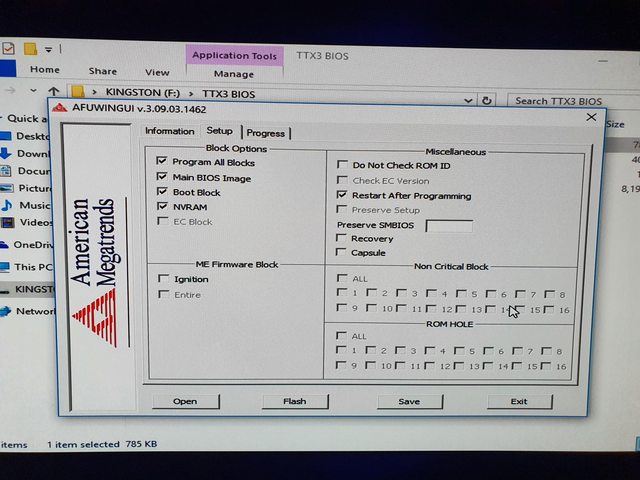
Once flashed, I swapped over the SSD and voila! Back in action!
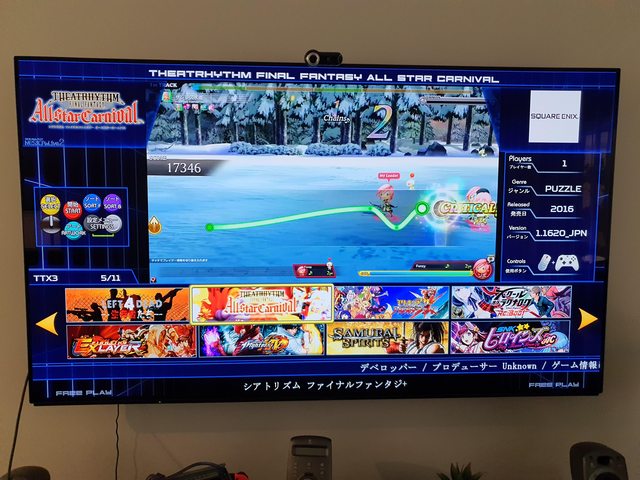
I am assuming it had a bad flash without me realising and I just assumed it went OK as it rebooted after the flash, but if ever anyone has this issue, they can just re-install Windows and re-flash.
It's always weird when you fix your own problems and reply to yourself when asking for help hahahah


Correction. the 3060 I purchased didn't work with other PC's either *(Tested today just to verify card was OK), so I think it's an issue with the card, I've also been looking at the forums, there are some reports about how certain UEFI settings need to be set, or updated, so it's not likely an issue with a 30XX card, but I haven't seen / read anybody having any success with the TTX3So I'll go through my experience for others to follow...
Flash went without a hitch, as instructions state, backed up bios. I did it in two places, on the flash, and locally on the HDD, I figured if one didn't save properly or I couldn't get back into the machine, and I had to re-flash the chip after a brick I wanted two copies.
Flash went as expected all lights green, the last one took a sec, and I was thinking "Oh No!" and then it turned green and re-booted... and it ran on the old GPU, so I knew the flash had worked.
Now to the cautionary / expereince.
I tried an EVGA 3060, I know overkill but I got it from a co-worker, it was clean, cheap, and fit the slot, so I was thinking I'd be able to use it. NO You can't.... even though it states you can use any GPU the 30 series seems to be too new to be able to utilize it. Maybe because of the architecture. Also possible is that it's too power hungry and it won't power through the 6->8 pin adapter..
So I have some older 1080's and 980's in the garage... but they were larger... so I was thinking, well I'll remove the fan, and just try it out, I won't run it like that, and I couldn't get anything but a blinking cursor to show, so I was concerned I couldn't get it to Post... I was starting to think I'd need the bios update, and manually re-flash it... Well on I went tried to boot with the old GPU, nothing... "Had I bricked it by trying the 3060?"
No, when you un-plug the fan it won't post... It needs to see the fan spinning, so I'm thinking of getting an extension or something again, to see how it behaves on 980, or 1080, as I got the same behavior as when I re-installed the 660. But it's not bricked, which is the good news... so if you get to a point where you can't boot, make sure you put everything back to the way it was, and then move forward to modding what you want to try. But I'm now looking at what smaller 10XX or 9XX card I can put in there, if I find something I'll update or reply, I think there's a list someone posted with which cards could/do work.
UPDATE: The 1080 with a fan extension worked, got 59.78 fps in SFV Benchmark. But I think I'll swap to a 1060 since I think it'll get similar FPS and be smaller so I can fit the fan inside the case, and keep it looking stock from the outside. Also I don't know about adding new-er games, I think if I wanted that I'd build an arcade pc instead... this was so it would use JVS or Fast/IO and Plug right into a Viewlinx...
I currently have a type x4 with SF6 - specs are i54590s, 4gb ddr3 at 1600 and a GTX1650 4gb. Can I flash this bios onto mine in order to upgrade my GPU? Thank you.Thanks to the efforts of other folks on these forums, you can now update a TTX3 mainboard with the B23 BIOS that will let you use any GPU with the board.
Here are some straightforward step-by-step instructions on how to update to this new BIOS. Understand that updating your TTX3 BIOS is done at your own risk.
What you'll need
Instructions - Part 1: Preparation
- TTX3 setup that's booting into Windows. These instructions assume you're using the Artax TTX3 Multi image.
- USB Keyboard, Mouse, and a Flash Drive.
- Computer capable of downloading a ZIP file and extracting the contents to a USB Flash Drive
Instructions - Part 2: Saving Off Your Current BIOS
- Download the linked ZIP file. It has the B23 BIOS and the Flash application.
- Extract the contents of the ZIP file to a Flash Drive.
- Boot up your TTX3. Connect the USB Keyboard, Mouse and Flash Drive with the BIOS files.
- Launch Windows Explorer.
- In the Artax Multi image, press the W and E keys on the keyboard to cycle through the categories in the game launcher. Go to the Utilities category all the way on the right. One of the options in Utilities is to Launch Windows Explorer. Use the arrow keys to highlight it, and press Enter twice to launch it.
- Browse to the Flash Drive, and into the "TTX3 BIOS" folder.
Instructions - Part 3: Flashing the New BIOS
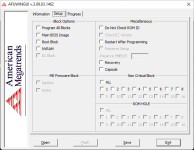
- Launch the "AFUWINGUIx64.EXE" application. The Flash tool should open to the following window:
- Fill in the four checkboxes under the Block Options heading, and click the Save button.
- Name the file "oldbios" and save it to your Flash Drive.
- Close the Flash tool, then relaunch it again.
- If you don't close out the tool, it won't let you flash a new BIOS for some reason - the Flash button stays disabled after selecting the new BIOS file for flashing.
- Click the Open button and select the "TTX3-1.0b23-092614.bin" file on your Flash Drive.
- Switch the File Type drop-down at the bottom to All Files to have the file appear in the file selection window.
- Fill in the four checkboxes under the Block Options heading, and the "Restart after Programming" option under the Miscellaneous heading.
- IMPORTANT: Make sure none of the checkboxes under the "ME Firmware Block" heading are checked. Updating this firmware block isn't necessary and it's caused side-effects with some systems.
- Click the Flash button.
- You'll see a Progress screen appear and some of the blocks will progressively turn Green.
- Once the flashing procedure finishes, the system should restart on its own. If it doesn't for some reason, close out the Flash application and restart the system manually.
- If you see one or more Red blocks, the flash operation didn't complete for some reason - try repeating the flash procedure. You can also try flashing back the old BIOS that you saved off earlier if need be.
- Don't restart the system if you experience Red blocks during the flash process or it may not boot again without desoldering the BIOS flash chip from the TTX3 PCB and soldering in a new one.
- Enjoy an TTX3 system that will now accept any GPU.
8/23/24 EDIT: Fixed the broken link to download the BIOS.