

mathewbeall
Enlightened
Hi Folks!
Lots of fun work this weekend. I have built a huge new version of the Namco Multi config that works on both the 246 and the 256. You *do* need an ODE from @electric_monk (v1/2 or v3 (fw version .508 )) and you DO need either a SYS2X6 security dongle from @brizzo (this would have to be found used) or a SD2PSX this is the one I got and tested with: https://www.amazon.com/dp/B0F1V55SRM?ref=ppx_yo2ov_dt_b_fed_asin_title). The important part is that the SD2PSX card has a usb serial connection on the front (this one does). The SD2PSX is likely the preferred method going forward because it's faster (dongle files are on the sd card - very quick), its available, and its fairly inexpensive.
What are the new features of V2.0?
Here are some links to the earlier threads with 3d files depending on the ODE you have.
For the images:
You will need to get the DVD ISO/HDD images from either of the below links - these are put on the 256GB thumb drive
If you have the SD2PSX you will need to get this prebuilt card image here and put onto an SD card and insert into the SD2PSX
Raspberry Pi Image:
https://mega.nz/file/QqIWTQpC#TREeMIWOHGbCsC3yqSSuciekHAooLzA_Yt_tB2IMZmA (Ver 2.25)
These are pi-shrunk - you will need at least a 16GB (maybe as low as 8GB?) card to image these onto - first boot will take longer (about 2-3 minutes) as it expands the filesystem to the entire SD card - the larger the card, the longer this takes. If you have the LCD hooked up to the Rpi via the helper board, you will see updates on status there. Once its rebooted - select a game so that it can write/select the dongle and select the disc, and you should be in business!
Quick Reminder: Remember that some of the games program FPGA chips on the board, and not every game clears those FPGA's on boot (the soft reset doesn't clear them either) so as you are flipping around between games - if a game won't load - turn the system off for 10 seconds and back on - it will likely load at that point.
WIFI hotspot SSID - Namco2x6-Pi, password: 2x6multi
local hostname: rpi-namco2x6.local
@Franco23444, @twistedsymphony, @ShootTheCore and a host of others will want to check this out - even if you are just running the old setup - ODE_v2/SYS2X6 - this is much more stable and robust. Thanks @El_isra for your work on the SD2PSX!
UPDATE: V2.5-V2.8.
Version 2.9
Please continue to do testing and give me feedback on bugs.
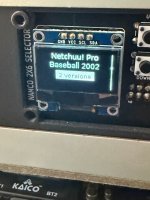
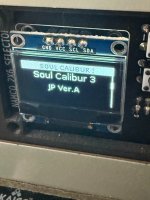
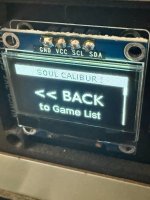
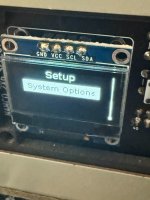
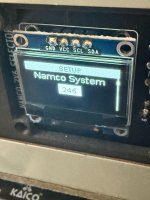
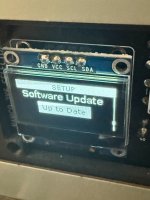
Attached are some pictures of the new interface look and some of the setup options on the OLED screen.
Lots of fun work this weekend. I have built a huge new version of the Namco Multi config that works on both the 246 and the 256. You *do* need an ODE from @electric_monk (v1/2 or v3 (fw version .508 )) and you DO need either a SYS2X6 security dongle from @brizzo (this would have to be found used) or a SD2PSX this is the one I got and tested with: https://www.amazon.com/dp/B0F1V55SRM?ref=ppx_yo2ov_dt_b_fed_asin_title). The important part is that the SD2PSX card has a usb serial connection on the front (this one does). The SD2PSX is likely the preferred method going forward because it's faster (dongle files are on the sd card - very quick), its available, and its fairly inexpensive.
What are the new features of V2.0?
- AUTODETECTS if you have a V3 ODE, or a V1/V2 ode (will need more folks to test this) - and what USB/SD port the images are loaded on!
- AUTODETECTS what security dongle you are using!
- Go to the Options sections on the webUI to see what was autoselected, and that is also where you can change hardware models
- Options sections - there is a download button for logs - if you are having issues - please download the logs and send them over to me - so I can try and figure out what is going on. Obviously I only have my hardware here that I can test on, and hopefully I covered most of the bases
- V1/V2 ODE auto filters out the hard drive based games
- Now monitors the ODE via serial after commands are entered, as well as the progress of the SYS2x6 dongle load to give feedback on both interfaces (LCD/Web) if one of those loads errors out you will see an error message and it will keep the system in hold mode.
- Visual progress on the dongle load on both interfaces (lcd/web)
- Reduced load time as much as possible so that it holds the system at reset now about 6-8 seconds into boot
- Reduced time across the board (aside from sys2x6 dongle load) to load new games
- Some games weren't showing in the web interface, now ALL games are showing in the web interface
- Added graphics for all games in the webUI - sorry, this isn't my area - some of them are ps2 game covers - if anyone wants to really go through that and curate a better list, send em over, and I will get them on it - but at least for now, everything has a graphic (web UI)
- WebUI is more streamlined - when you pick a game like Soul Calibur - you can see that it has 7 versions, and when you select it, you then pick which version
- Lots of little changes to make it more robust
Here are some links to the earlier threads with 3d files depending on the ODE you have.
- Original post/concept/impementation from @BladeZX : https://www.arcade-projects.com/threads/namco-2x6-pi-multi-selector.17220/
- ODE V1/2 : https://www.arcade-projects.com/threads/parts-i-used-for-blades-rpi-loader-for-namco-2x6.18362/
- ODE V3: https://www.arcade-projects.com/thr...de-v3-modifications-and-new-rpi-images.34778/
For the images:
You will need to get the DVD ISO/HDD images from either of the below links - these are put on the 256GB thumb drive
- https://nextcloud.btmaslen.com/s/riRX4XZGdGp8fnK
- OR
- https://mega.nz/file/hjgBlDSQ#ejn1Wxeg5nOfEjK9Rr0buSmMEc0SPMCktSbHCRQnfXQ
If you have the SD2PSX you will need to get this prebuilt card image here and put onto an SD card and insert into the SD2PSX
- https://mega.nz/file/9mBRlBpb#XUihT234Q9mrrqFPLWf83R6E4ZzkYcLIEOVnzfxZTFc
- you need the SD2PSX to be running firmware 1.4 or greater (https://github.com/sd2psXtd/firmware)
- you will need to go through the process of deploying CIV.bin to the card and changing over to ps2/arcade variant (ArcadeProjects search is your friend here)
Raspberry Pi Image:
https://mega.nz/file/QqIWTQpC#TREeMIWOHGbCsC3yqSSuciekHAooLzA_Yt_tB2IMZmA (Ver 2.25)
These are pi-shrunk - you will need at least a 16GB (maybe as low as 8GB?) card to image these onto - first boot will take longer (about 2-3 minutes) as it expands the filesystem to the entire SD card - the larger the card, the longer this takes. If you have the LCD hooked up to the Rpi via the helper board, you will see updates on status there. Once its rebooted - select a game so that it can write/select the dongle and select the disc, and you should be in business!
Quick Reminder: Remember that some of the games program FPGA chips on the board, and not every game clears those FPGA's on boot (the soft reset doesn't clear them either) so as you are flipping around between games - if a game won't load - turn the system off for 10 seconds and back on - it will likely load at that point.
WIFI hotspot SSID - Namco2x6-Pi, password: 2x6multi
local hostname: rpi-namco2x6.local
@Franco23444, @twistedsymphony, @ShootTheCore and a host of others will want to check this out - even if you are just running the old setup - ODE_v2/SYS2X6 - this is much more stable and robust. Thanks @El_isra for your work on the SD2PSX!
UPDATE: V2.5-V2.8.
- Common design patterns on the OLED - a quick tap on up or down goes up or done once. a long hold (1s) on up takes you all the way to the top of the current menu, and a long hold on the down button takes you to the bottom. if you are in a submenu - BACK is always at the top, and is denoted by a bar on the left side of the OLED. SETUP is located at the bottom of the top level menu (more on these options further down). On the right side is a scrollbar that shows the current menu and your position in it.
- OLED panel now has games grouped by name - you hit the select button to navigate into the submenu (noted by a left bar on the oled) - and you can select the variant from there.
- to get out of a submenu - go to the top of the current menu and select "Back"
- the game list will be very specific to what ISO/HDD images you have on your usb stick, it won't list any game where the ISO/HDD isn't there
- In the webui, under filters, you can select/deselect controls - so for example, if you wanted to hide all games that need touchscreen hardware you can just deselect that option. It defaults initially to all selected
- After first boot is complete, it will hold system in reset with a message that says "Choose game"
- When game is loading, the up/down/select buttons are disabled
- The Gundam games are in their own collection now
- SETUP menu at the very bottom of the top level menu - this shows you what version you are on, ability to change back to hotspot mode (if you are in home wifi mode), if in home wifi mode, you can see the ip address, reboot, shutdown options, and the ability now to change the 246/256 setting. For this reason - there is just one image now - and it defaults to 246. If you are deploying this to a 256, go to the setup menu (or the webui) and change the system type to 256.
- For anything in the setup menu, when you select, as an example, to reboot - the first screen will be "cancel" in case you accidentally hit that - select will then take you back a level. If you do want to actually perform a reboot, just hit the down button, and select "yeah, i really want to do this".
- This image will be the last image (I think) that you will need to pull your SD card out and reimage. From this point forward all updates will happen OTA - to enable this, you will need to join your Namco246/256 to an SSID that has internet access. Once its up and running on a SSID that has internet access, go to the webui and go to Options -> Software Update, and it will check to see if a newer version exists - if it does, you can just ugprade from that menu and reboot the system. I would HIGHLY RECOMMEND you don't keep this system connected to the internet, after this upgrade I would recommend flipping it back to hotspot mode.
- Graphics in the webui were created by "Stuartc49" over at emumovies.com (https://emumovies.com/files/file/5521-namco-arcade-25d-custom-box-fronts/). I pulled them down and didn't modify/change them at all - I assume they are public domain, but if not - someone can just tell me and I will remove them.
Version 2.9
- Taiko games are grouped into a sub menu.
- Added the ability to check for an OTA update and apply from the OLED panel.
- Added the feature of saving the last successful home wifi SSID joined - after that, you can switch between hotspot mode, and joining that wifi SSID from the panel with just a push. There is also the option to just turn wi-fi off as well - some folks might just want to leave wi-fi off if they don't use the webUI and only turn on wi-fi when looking for udpates. This means that you only ever really have to go into the webUI once to join your home network (as trying to enter a SSID password on the little oled panel would be way too difficult).
- A bunch of webUI changes - should look good on anything now (computer, ipad, iphone) - also under options is dark/light mode, better help page.
- Rebuilt the WiFi webUI and all the scan functions - should be much more functional - changing wifi modes/SSID's, turning wifi on/off - none of that triggers a reboot anymore.
- Changed the way you can tell if you are in a sub menu - now, the top bar shows what the submenu is. The top bar also shows you if the network connectivity is off, or if an update is available.
- You can now select to view just your favorites from the OLED - the banner at the top changes to show "Favoirtes"
Please continue to do testing and give me feedback on bugs.
Attached are some pictures of the new interface look and some of the setup options on the OLED screen.
Attachments
Last edited:

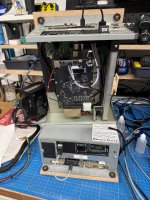
 - It is just something to keep me insane with multiple usb drives floating around and for testing purpose like today. this way i know which usb drive is which in case of hardware malfunction etc
 )
)